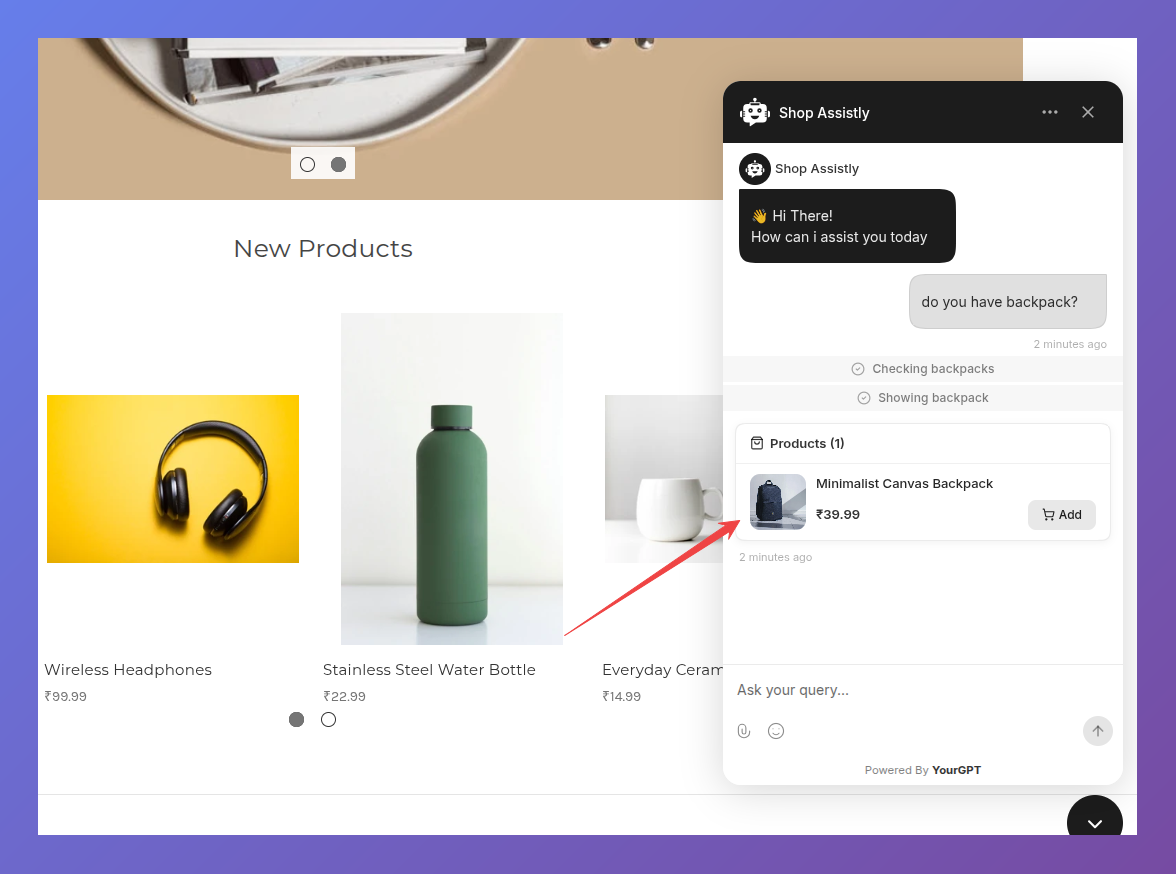
How to Install the YourGPT Chatbot on BigCommerce?
Connect your BigCommerce store to YourGPT first. In the YourGPT dashboard, open Integration, select BigCommerce, enter your store URL, and click Enable.
Step 1: Copy Your Widget Script
In the same BigCommerce integration window, open Widget Installation and copy the script shown there.
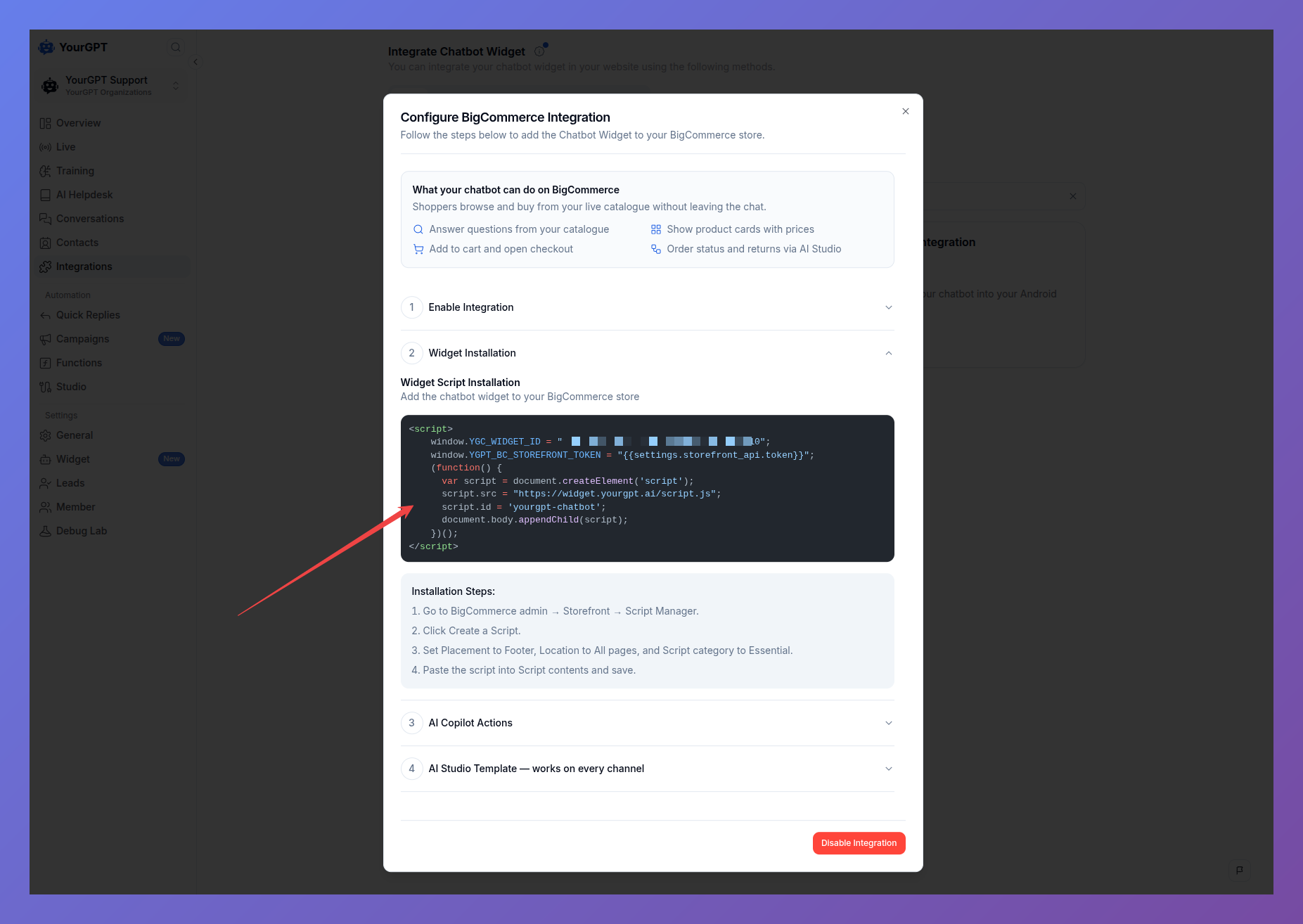
Copy it exactly as it appears. Part of the script looks like a placeholder rather than a finished value — that's intentional. BigCommerce fills it in automatically every time a page loads.
## Step 2: Open Script Manager
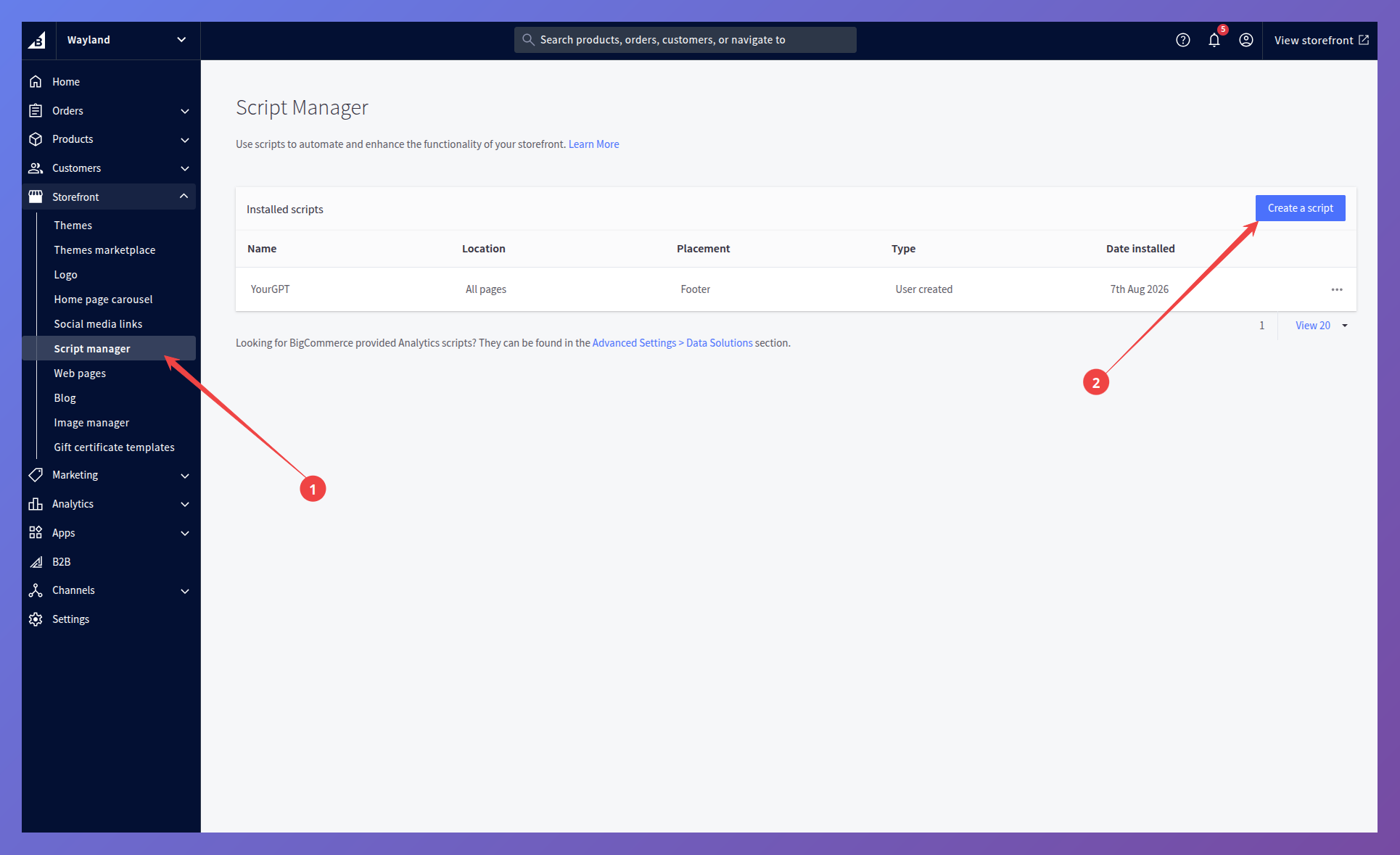
In your BigCommerce admin, go to Storefront → Script Manager, then click Create a Script.
Step 3: Set the Script Options
Fill in the form like this:
Field | Value |
|---|---|
Placement | Footer |
Location | All pages |
Script category | Essential |
Script type | Script |
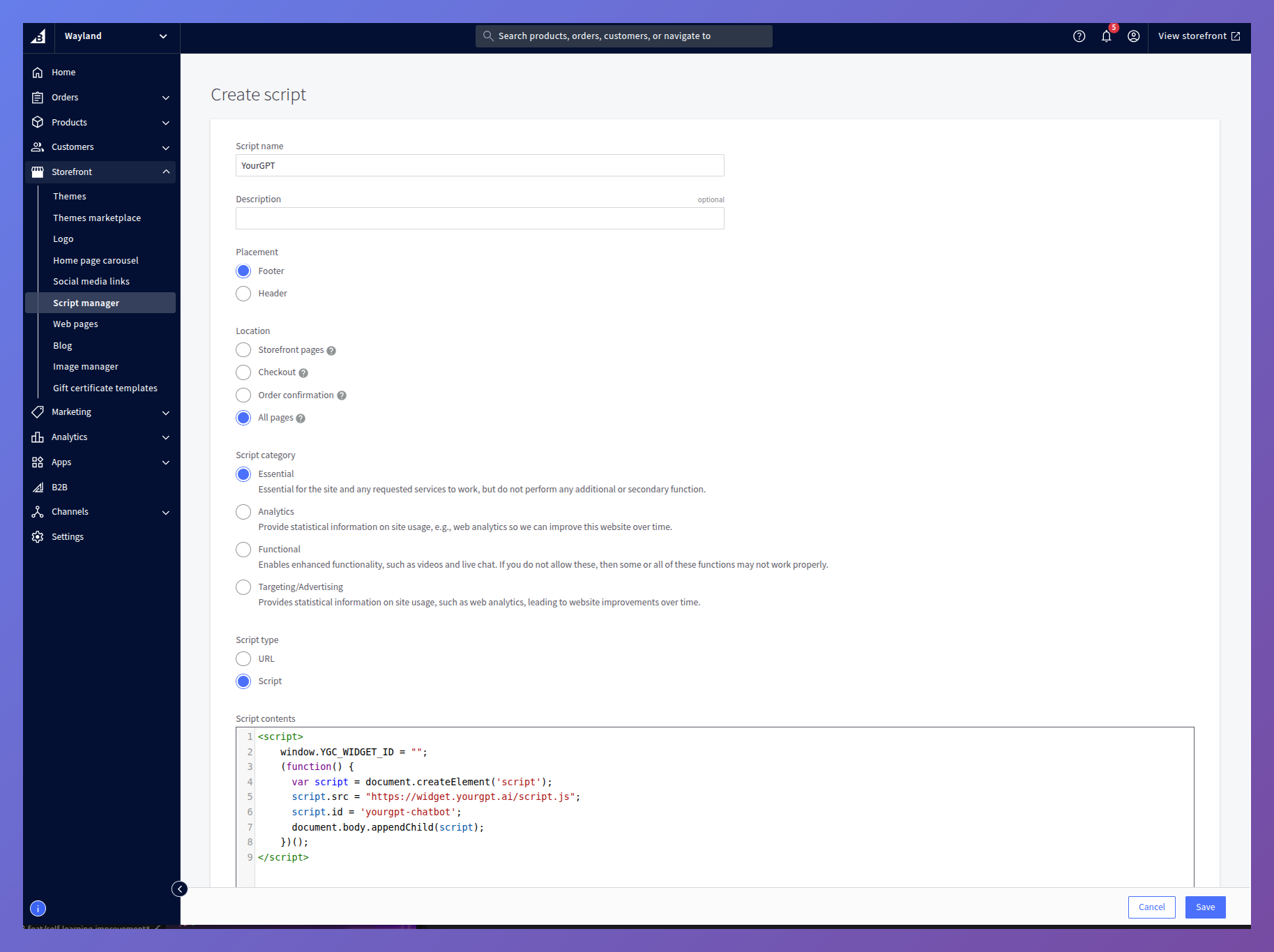
Placement must be Footer. If you choose Header, the widget won't load — the page isn't ready for it yet at that point.
Step 4: Paste and Save
Paste the YourGPT widget script into Script contents, then click Save.
Open your storefront and confirm that the chat widget appears. It is worth checking a product page and the cart as well, not just the homepage.
Next Step
Once the widget is live, you can enable AI Copilot Actions from the BigCommerce integration. This lets the agent search your catalog, show matching products in chat, and add selected items to the shopper's cart.