
How to Use AI Copilot Actions for BigCommerce
How to Turn It On
Go to Functions → AI Copilot Actions, then select BigCommerce from the list. Turn on whichever of the 6 actions you want your chatbot to use.
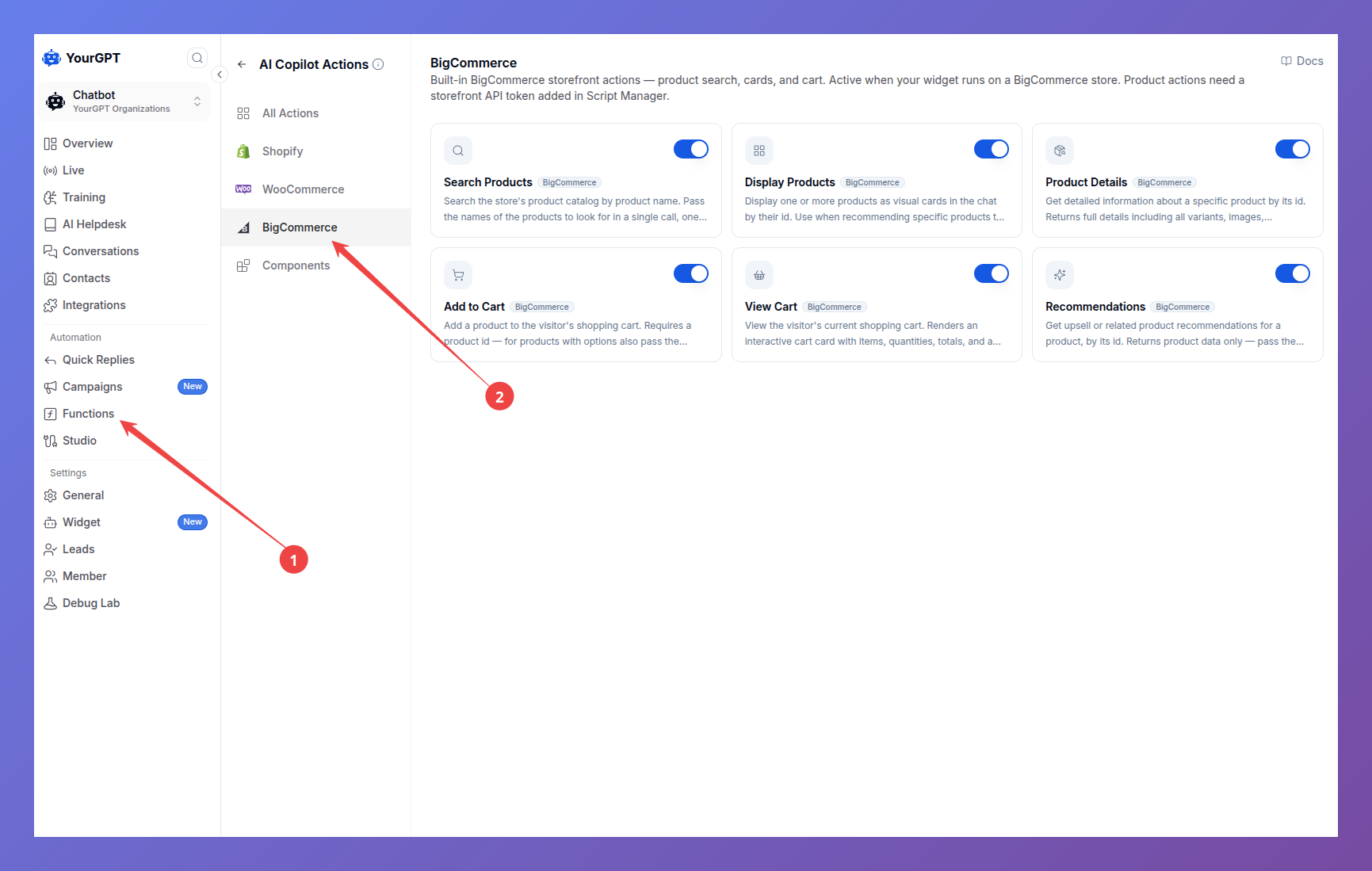
These actions work directly on your BigCommerce store.
The 6 Actions
These work together as a sequence, though a shopper doesn't need to know that — it just feels like one smooth conversation.
1. Search Products
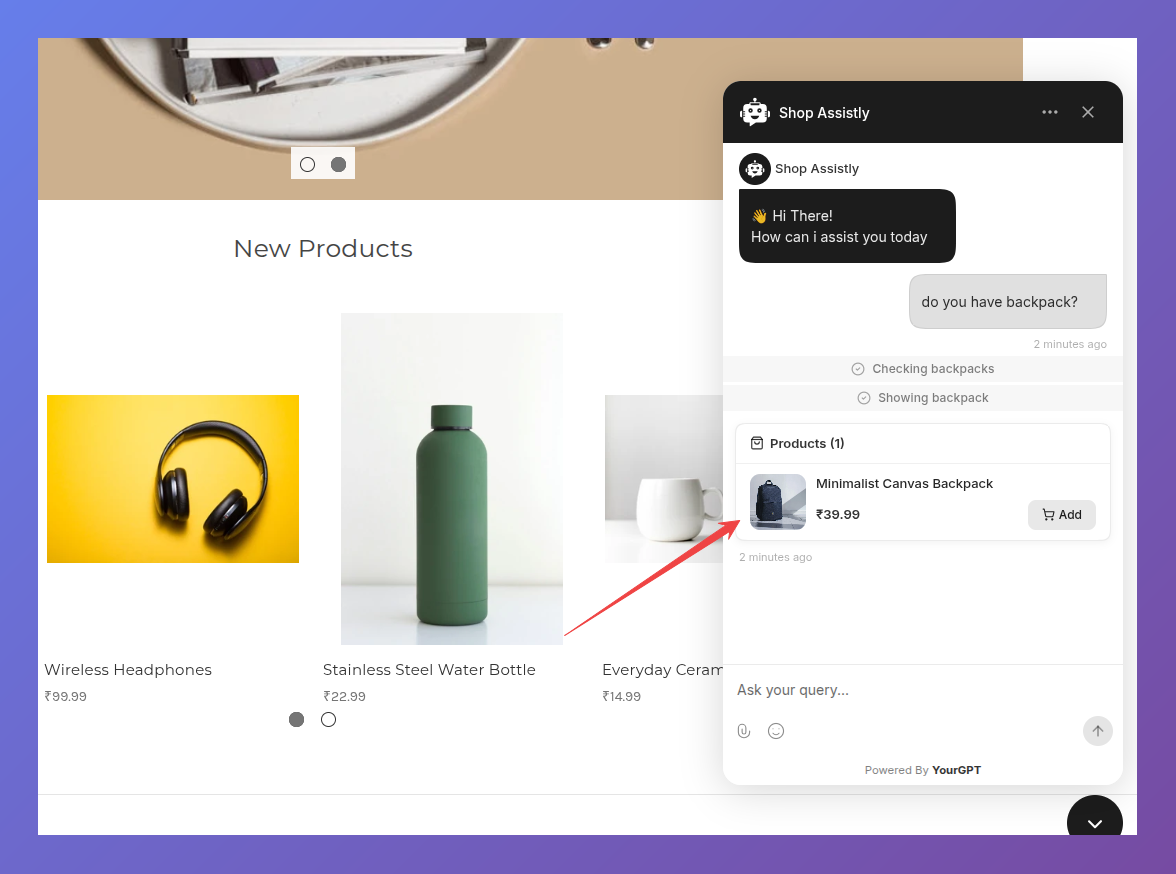
Finds products in your catalogue when a shopper describes what they want. Works behind the scenes.
2. Display Products
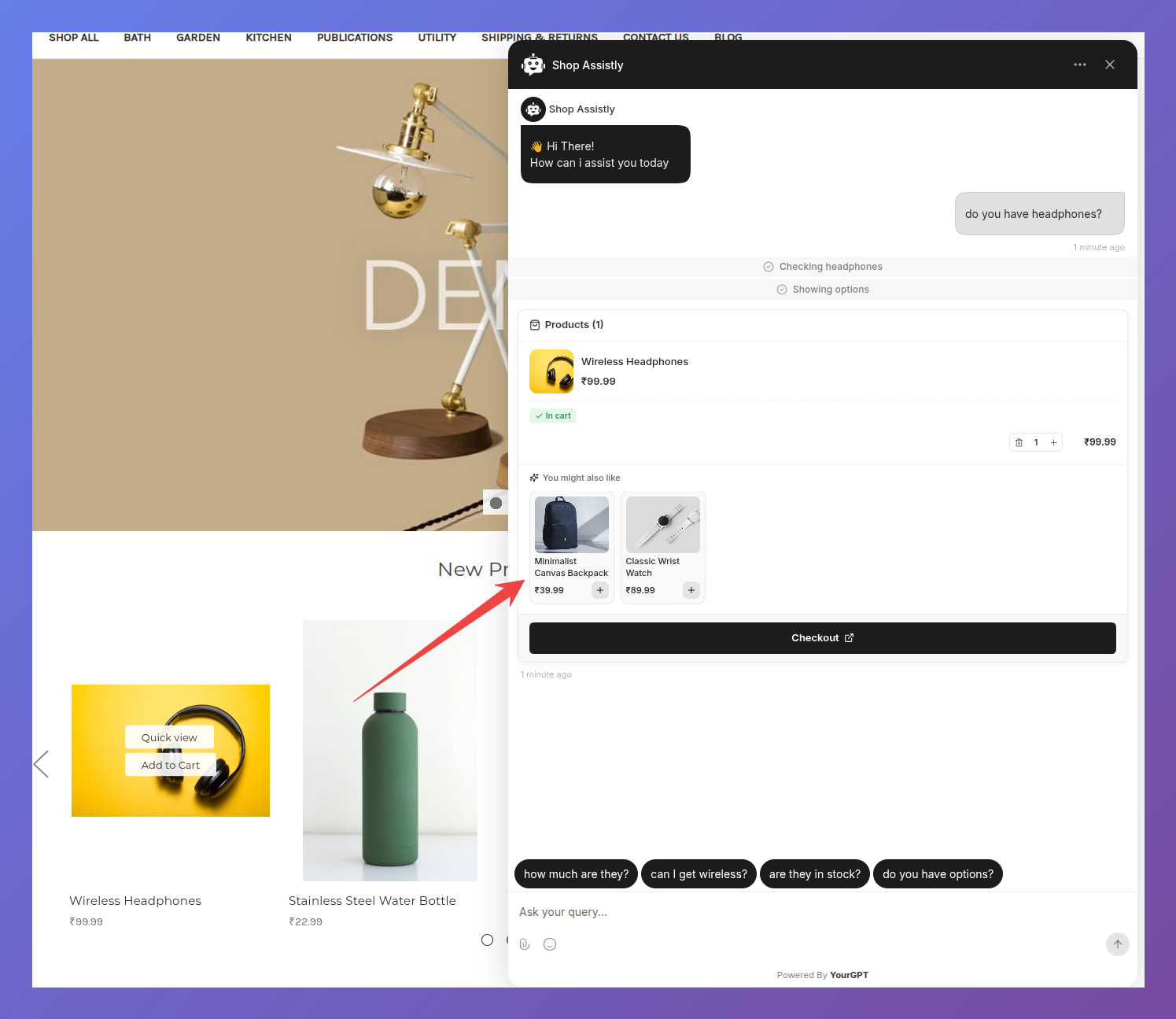
Shows matching products as cards in the chat — image, name, brand, and price. Tapping a card opens the full product view; tapping Add puts it straight in the cart.
3. Product Details
Looks up a product's sizes, colours, and what's in stock. Works behind the scenes.
4. Add to Cart
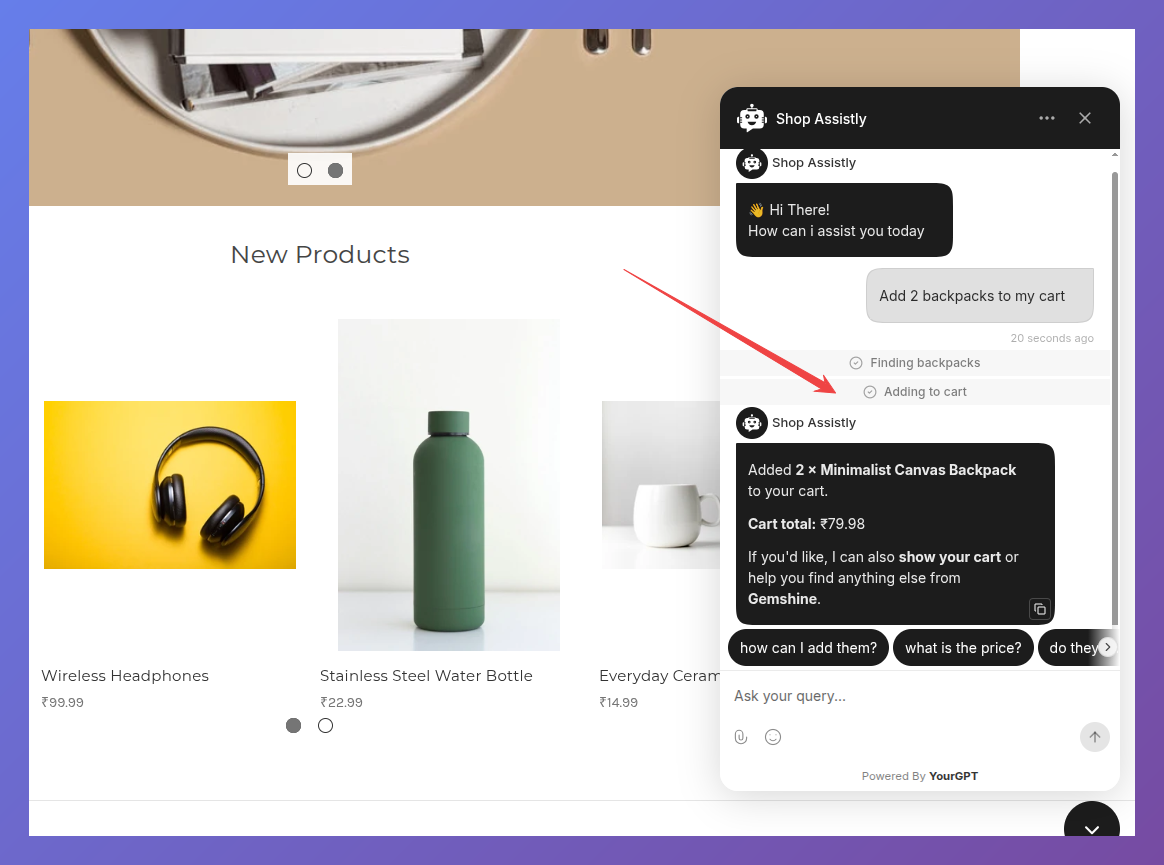
Adds to the shopper's real BigCommerce cart — the same one they'd see at checkout. For products with choices like colour and size, an option picker opens first.
5. View Cart
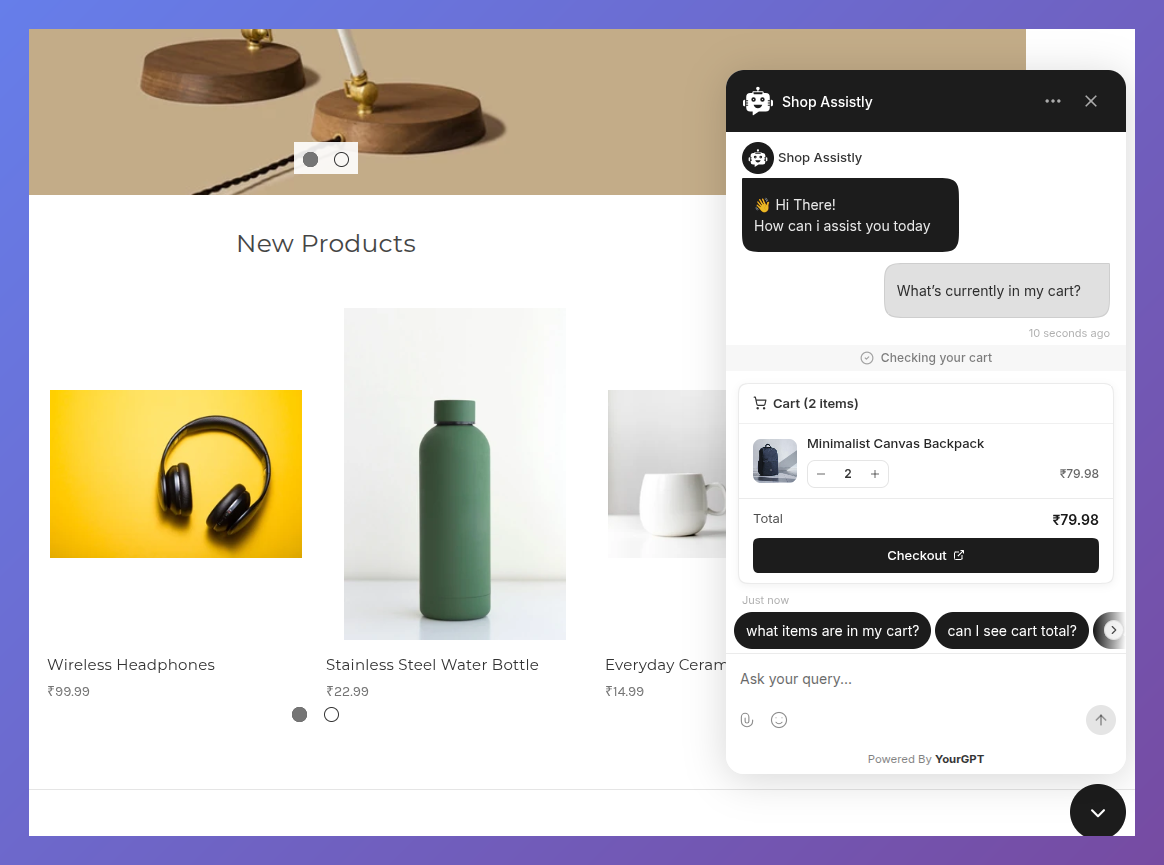
Shows the cart with images, quantities, and total, plus a Checkout button that opens your store's real checkout page.
6. Recommendations
Suggests products that pair well with one a shopper has just viewed or added to their cart, shown as a "You might also like" strip they can add from directly.
Good to Know
Requires Agent Mode. Like all AI Copilot actions, these only run when Agent Mode is enabled.
Off by default. Each action can be turned on or off individually — you don't have to enable all 6.
Website only. These run in the shopper's browser, so they don't apply to messaging channels. Use AI Studio for those.