
From Default to Delightful: Customizing Your Chat Widget
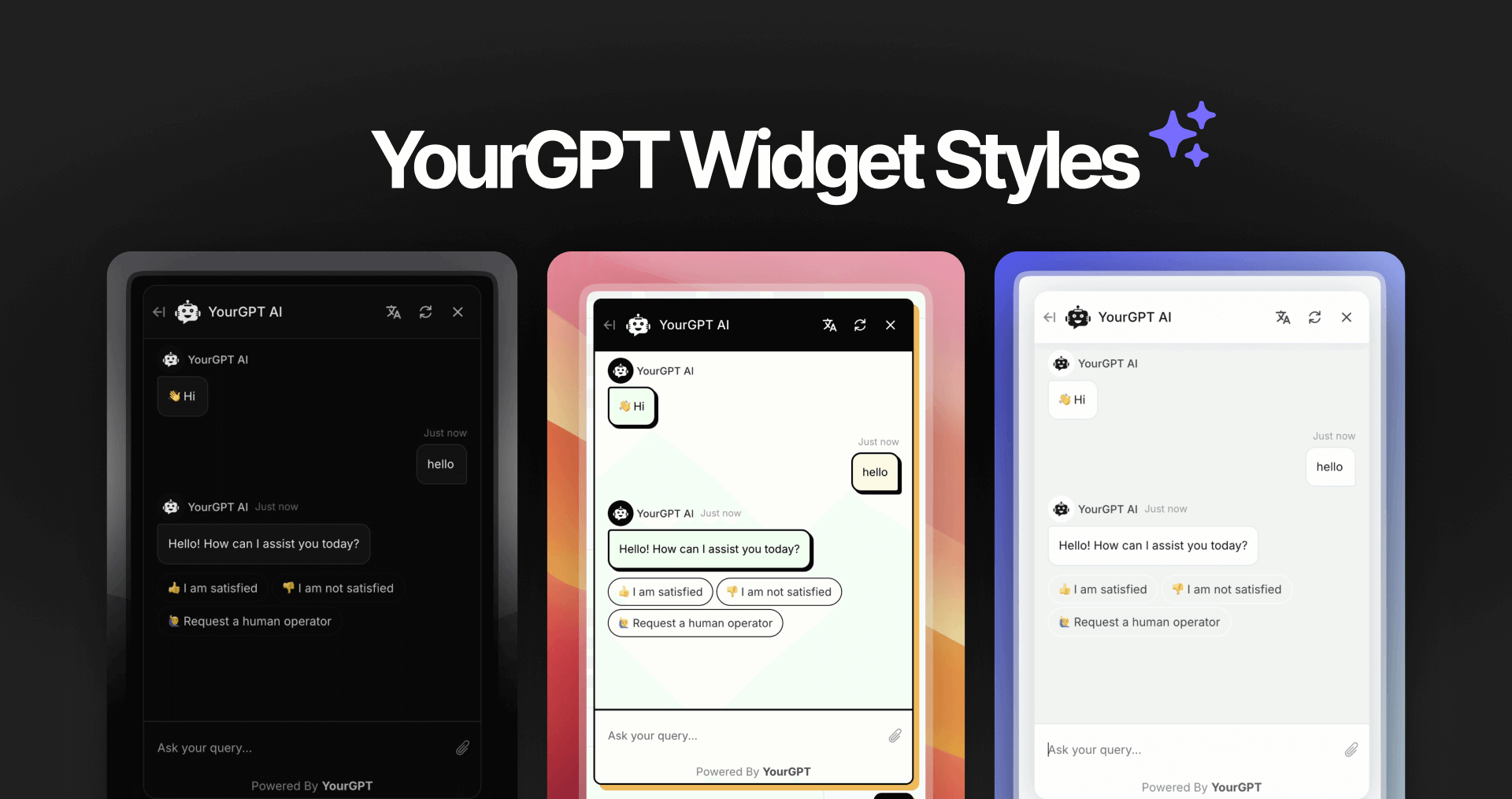
Make your chatbot look the way you want using custom themes and CSS.
Browse Widget Style Templates
See available widget designs and pick one you like.
Visit our style gallery:
🔗 View Styles on GitHub →
✂️ Step 1: Copy the Style Code
Get the CSS code for your chosen style.
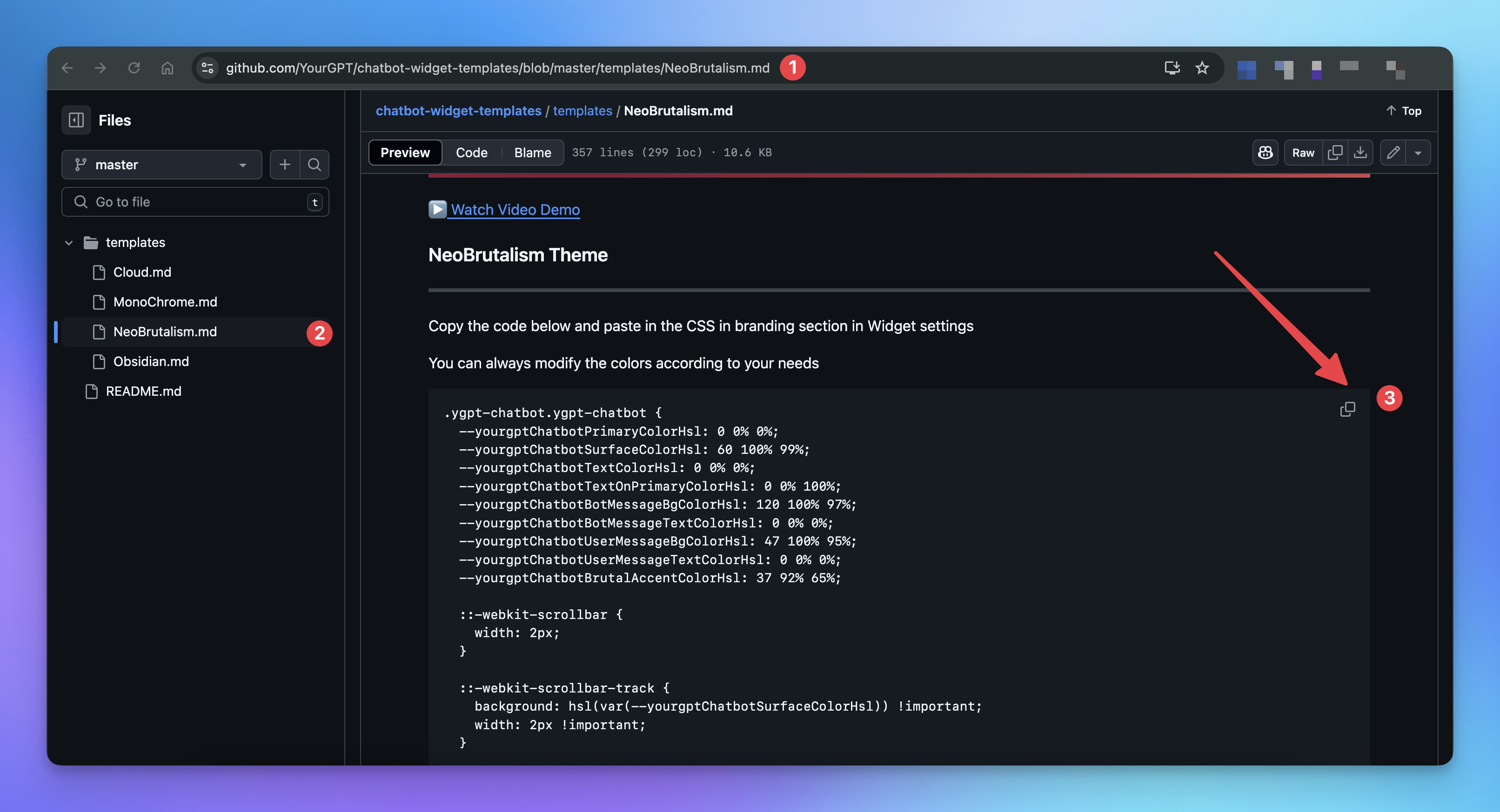
Go to the GitHub repo.
Open the template you want.
Copy the CSS snippet provided.
⚙️ Step 2: Add CSS to Your Widget
Apply the style to your chatbot widget.
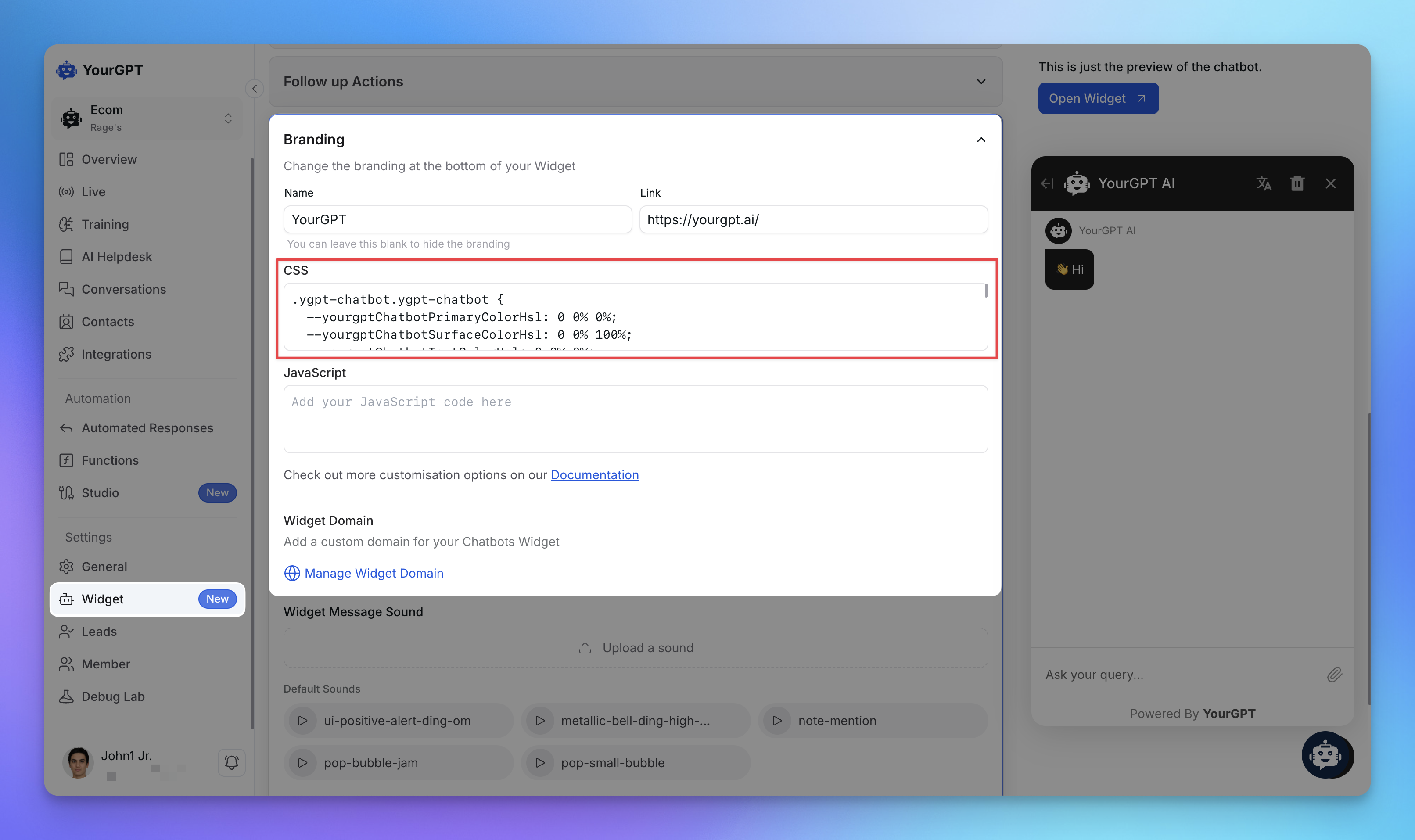
Go to your YourGPT Dashboard.
Navigate to Chatbot → Widget → Branding.
Paste the copied CSS into the CSS field.
Click Save.
✅ Step 3: Preview Your Styled Widget
After saving, go to your site or chatbot preview.
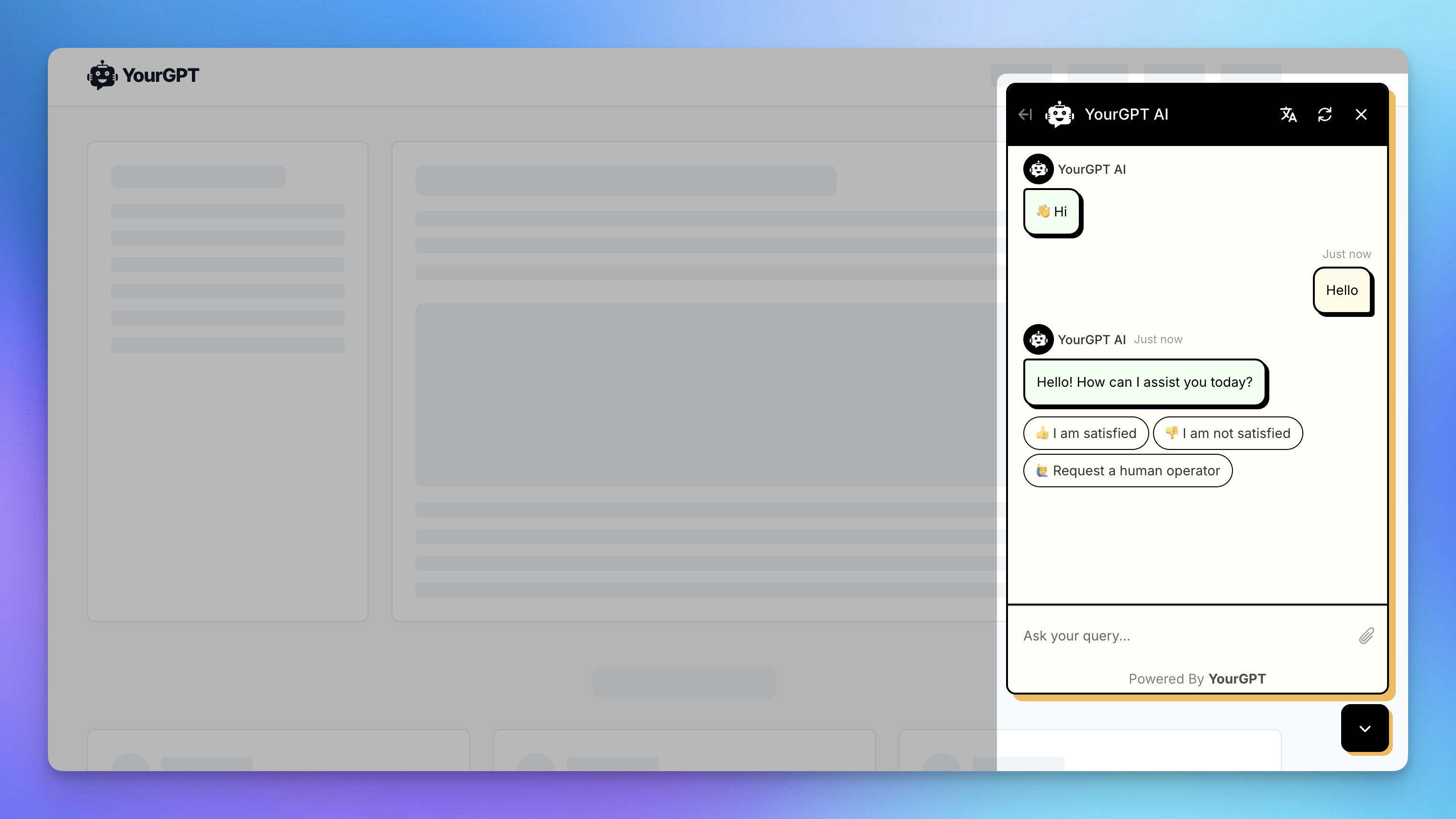
Looks great, right?
💡 Bonus Tips
You can modify the styles or create your own themes from scratch.
We’re adding more styles—check back often.
Built something cool? We’d love to feature it!
Related Articles
Voice-to-Voice AI Bot on WhatsApp (or Any Voice-Supported Platform)
Build a voice-to-voice AI chatbot with real-time replies using AI Studio.
Launch a Virtual Try-On Experience in Minutes
Your Fastest Way to Add Virtual Try-On to Any Chat Interface
Running a Discord Community Bot with YourGPT
Give your Discord community a helpful AI co-pilot
AI Assistant for Clinic Appointment Booking with Cliniko
Set Up a Clinic Booking bot in Minutes Using Prebuilt Templates
Adding an AI Search Widget to Your Docs, Site, or App
Add smart AI search Widget to your site in minutes—just copy, paste, and go
Limiting Number of Messages on your AI Agent
Explore how to effectively manage user access by limiting the number of messages