
Import and Train AI Model with Zendesk Data
This guide will walk you through the process of importing learning data from Zendesk and creating a new training job on your AI platform. You’ll learn how to set up the training job and start the training process using your Zendesk knowledge base.
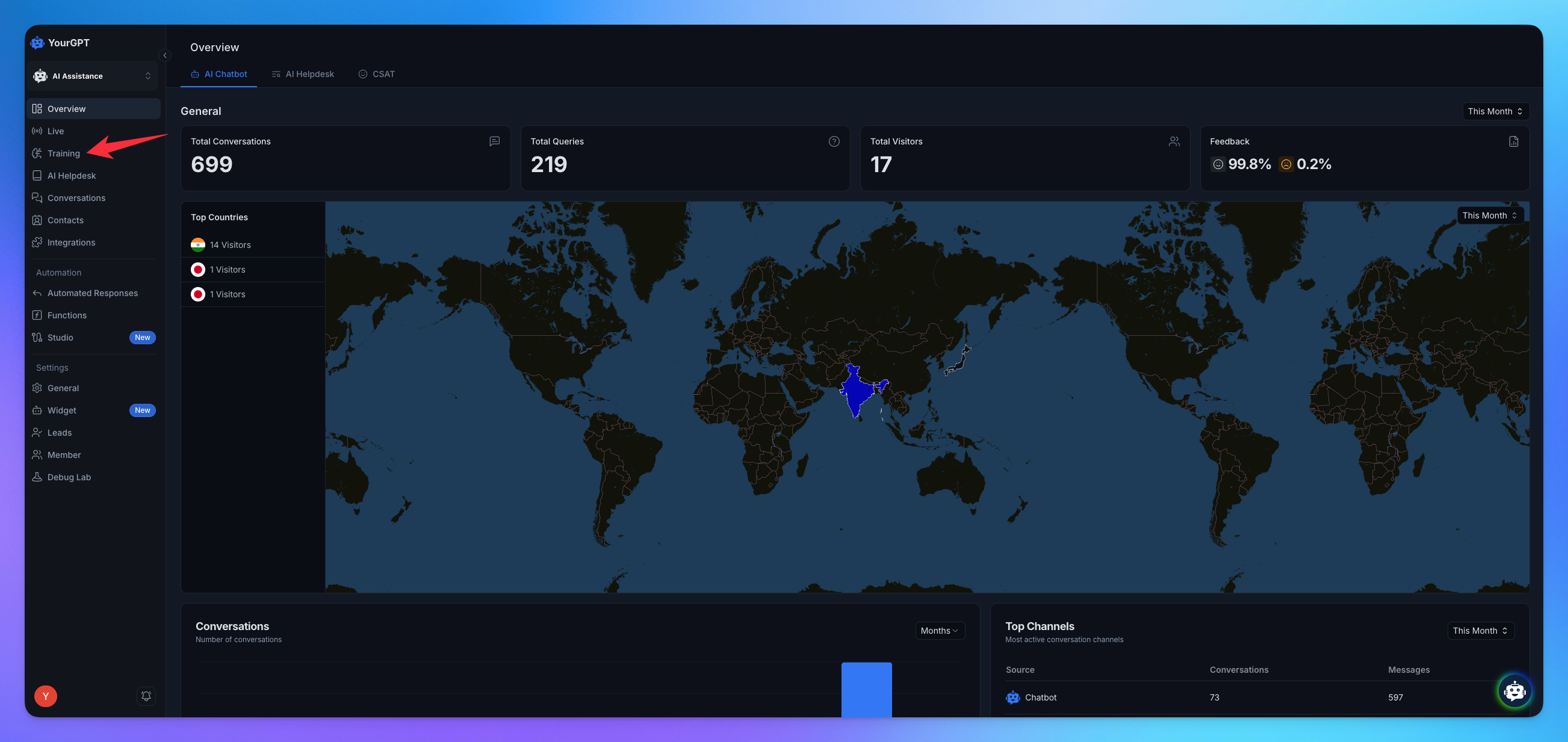
1. Navigate to Training
Click on Training in Sidebar.
Go to Others and click on Click on Import button.
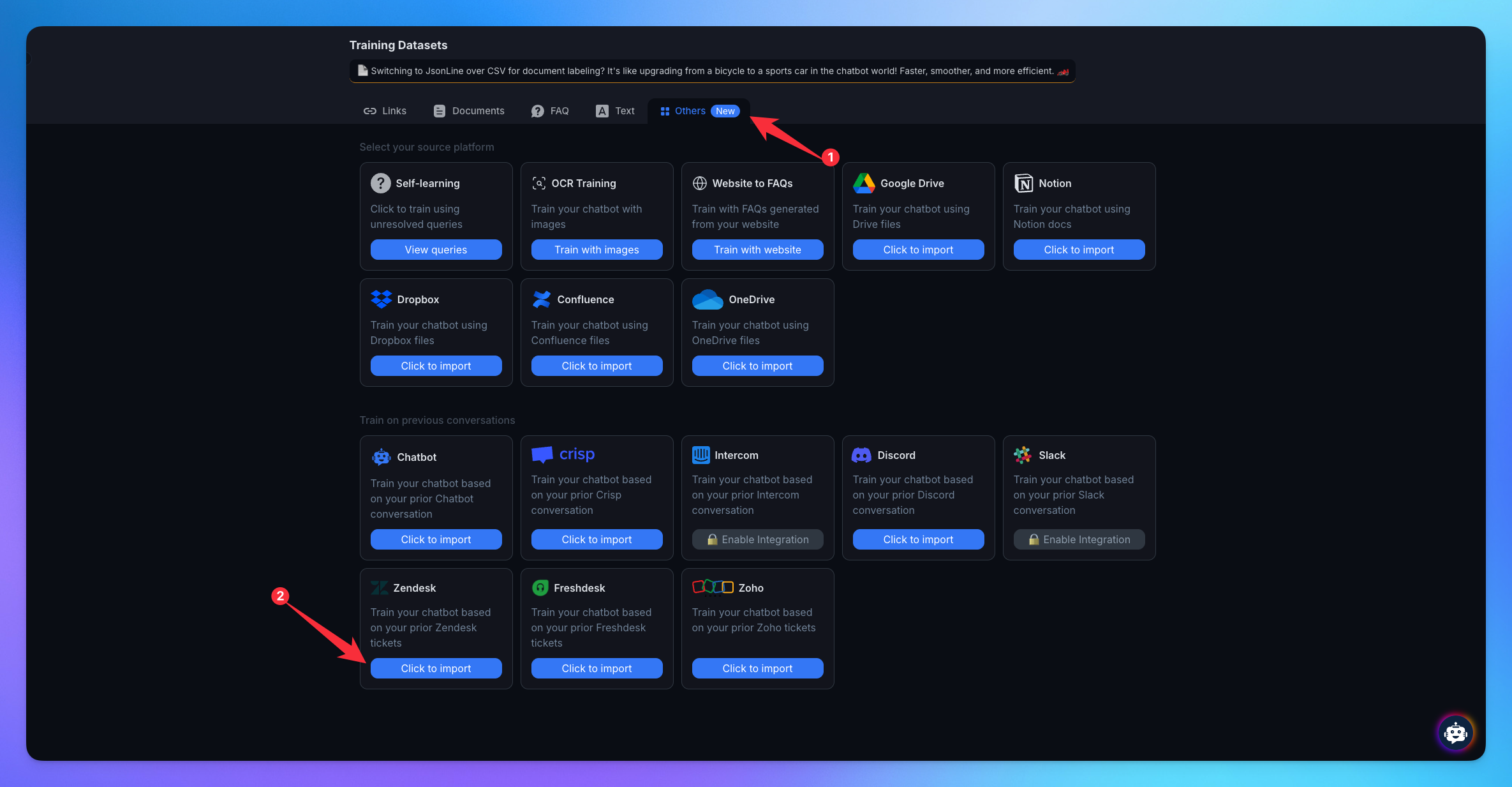
2. Get Your Credentials
Login to Zendesk
Go to your Admin Center.
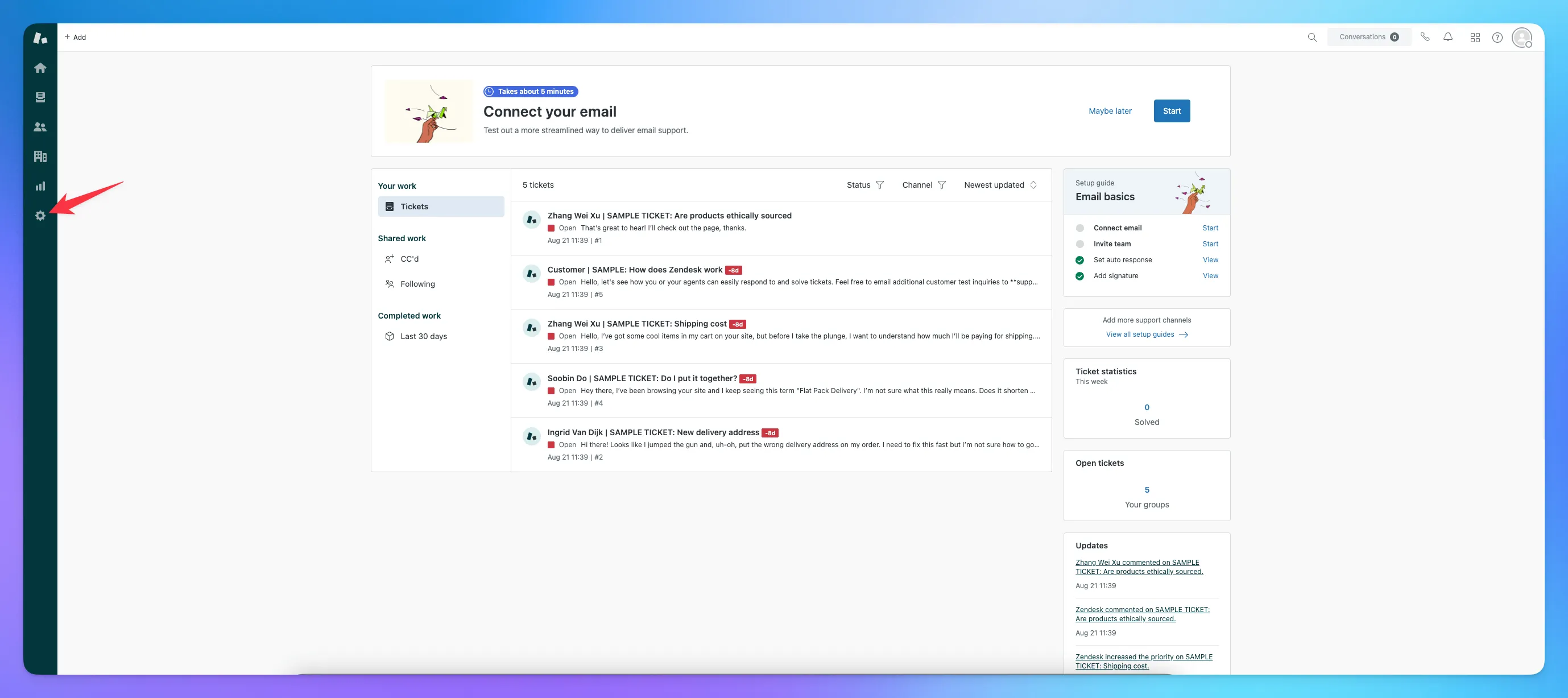
Go to your Zendesk Admin Center.
Navigate to Accounts> Contacts > Email.
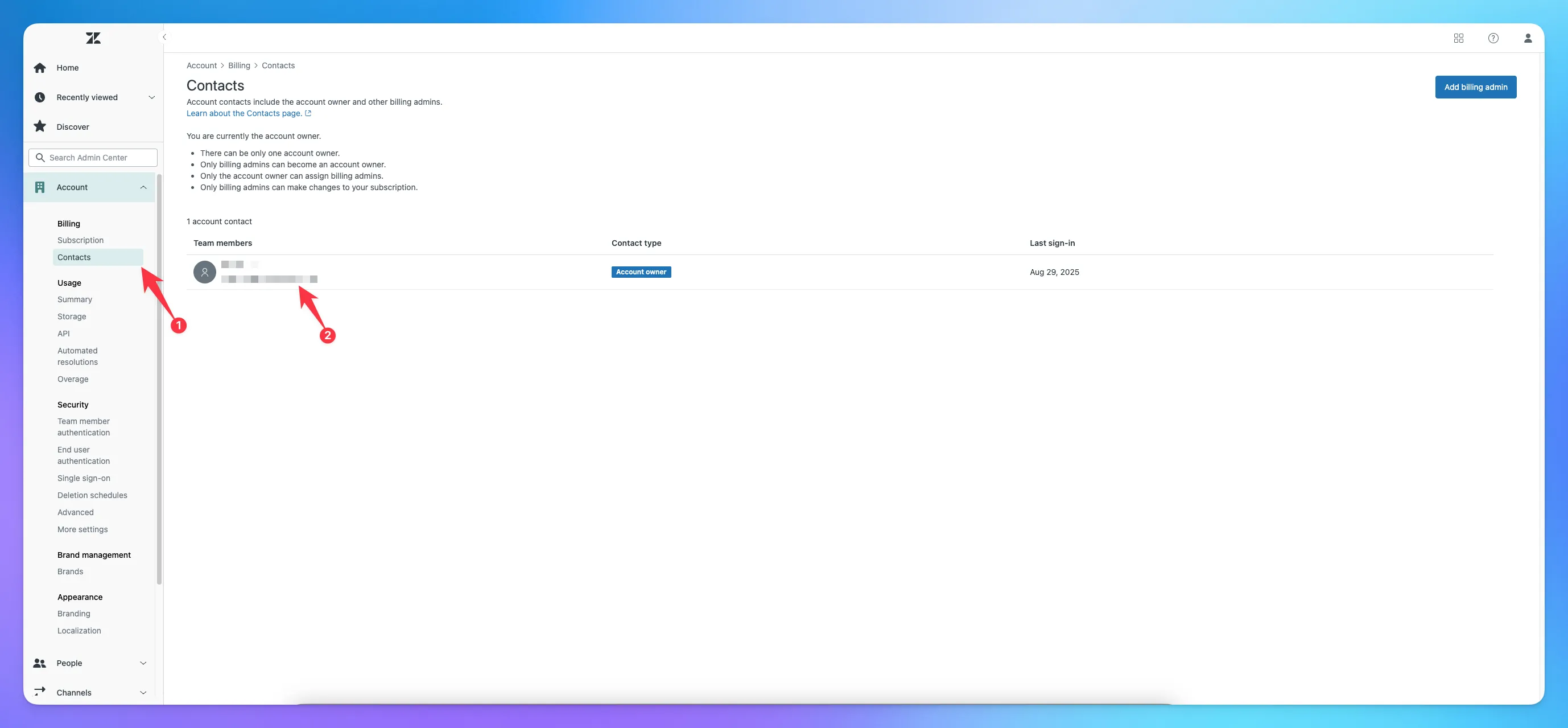
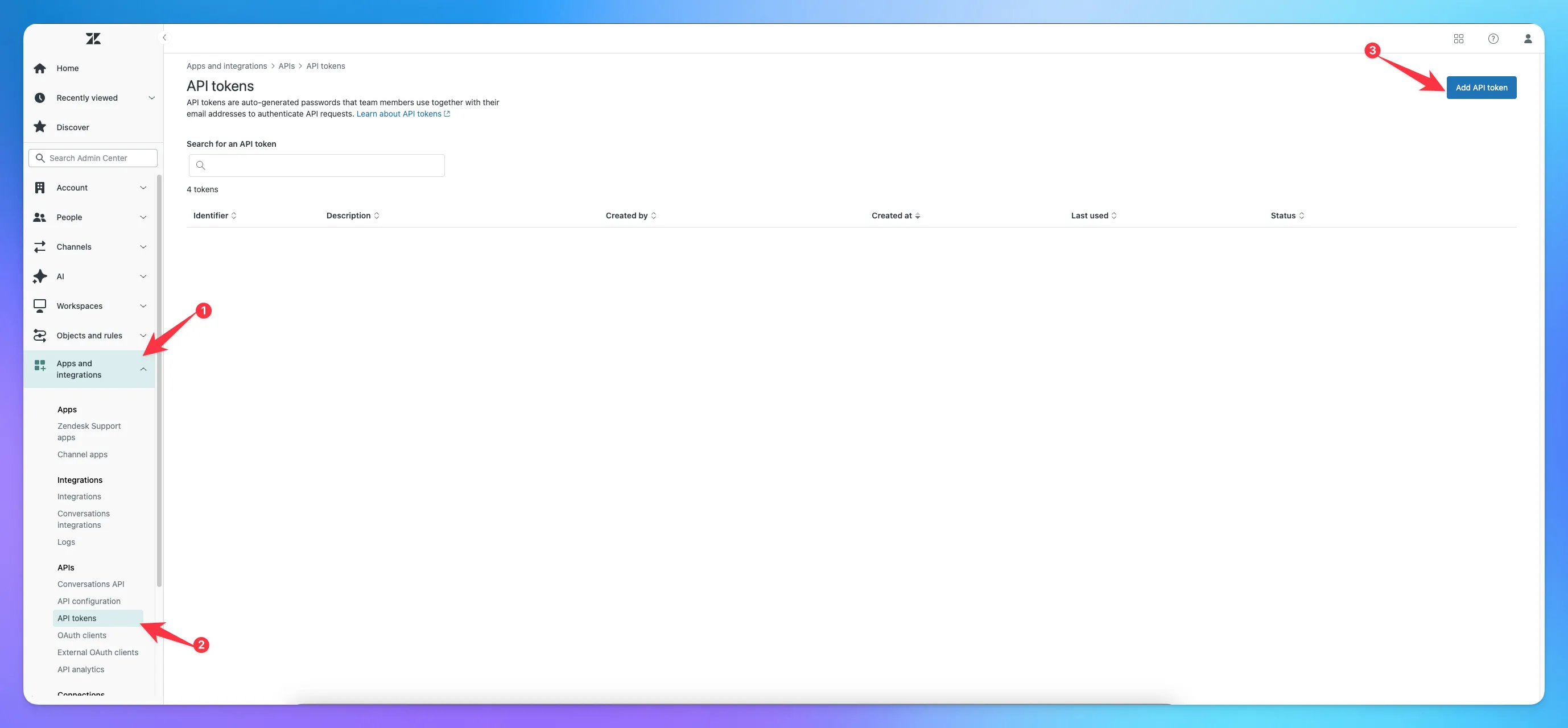
In the Zendesk Admin Center, go to Apps and integrations > APIs > API tokens.
Click on “Add API token”.
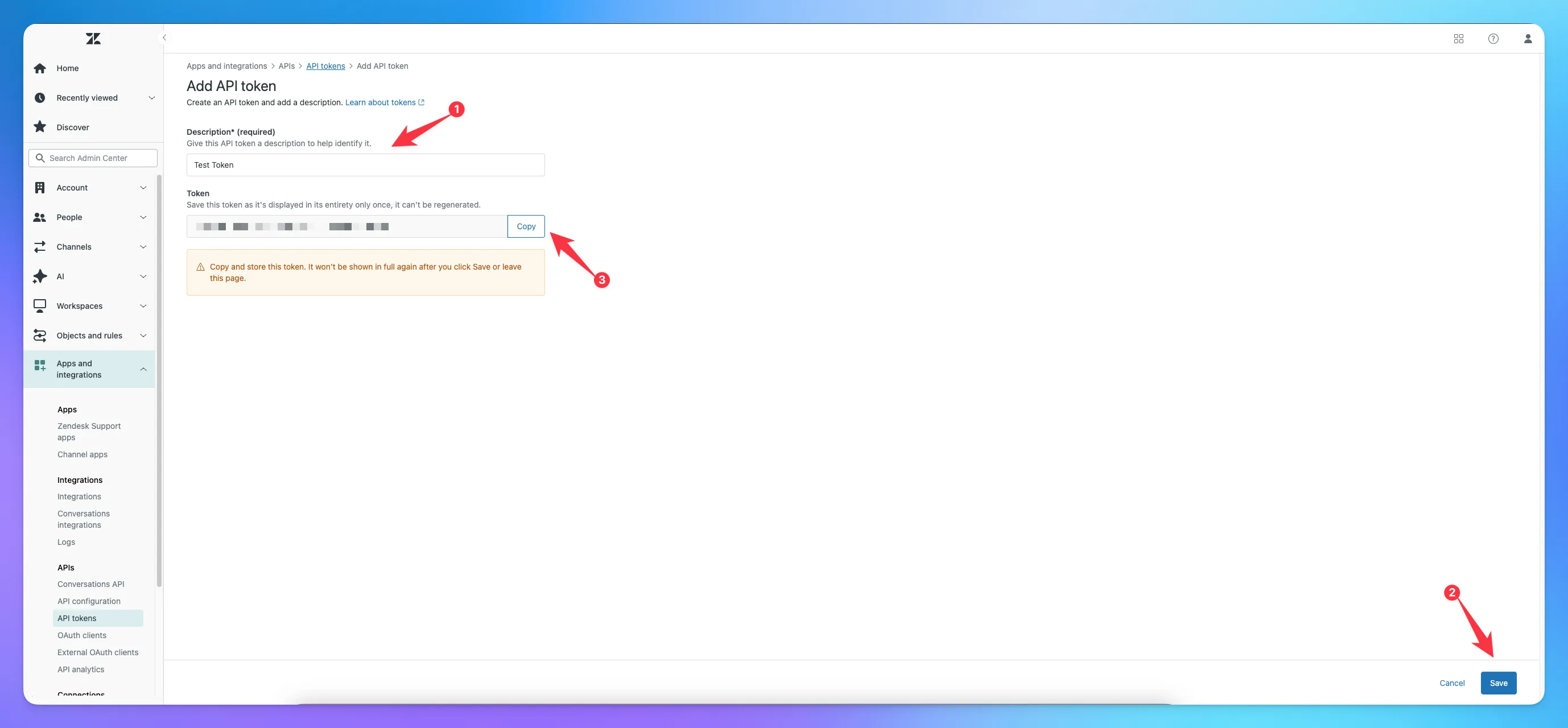
Enter a name for the token to help you identify its purpose.
Click “Create.”
copy the token
Look at the URL in your browser when you are in Zendesk Dashboard. It will be in the format:
yourcompany.zendesk.com.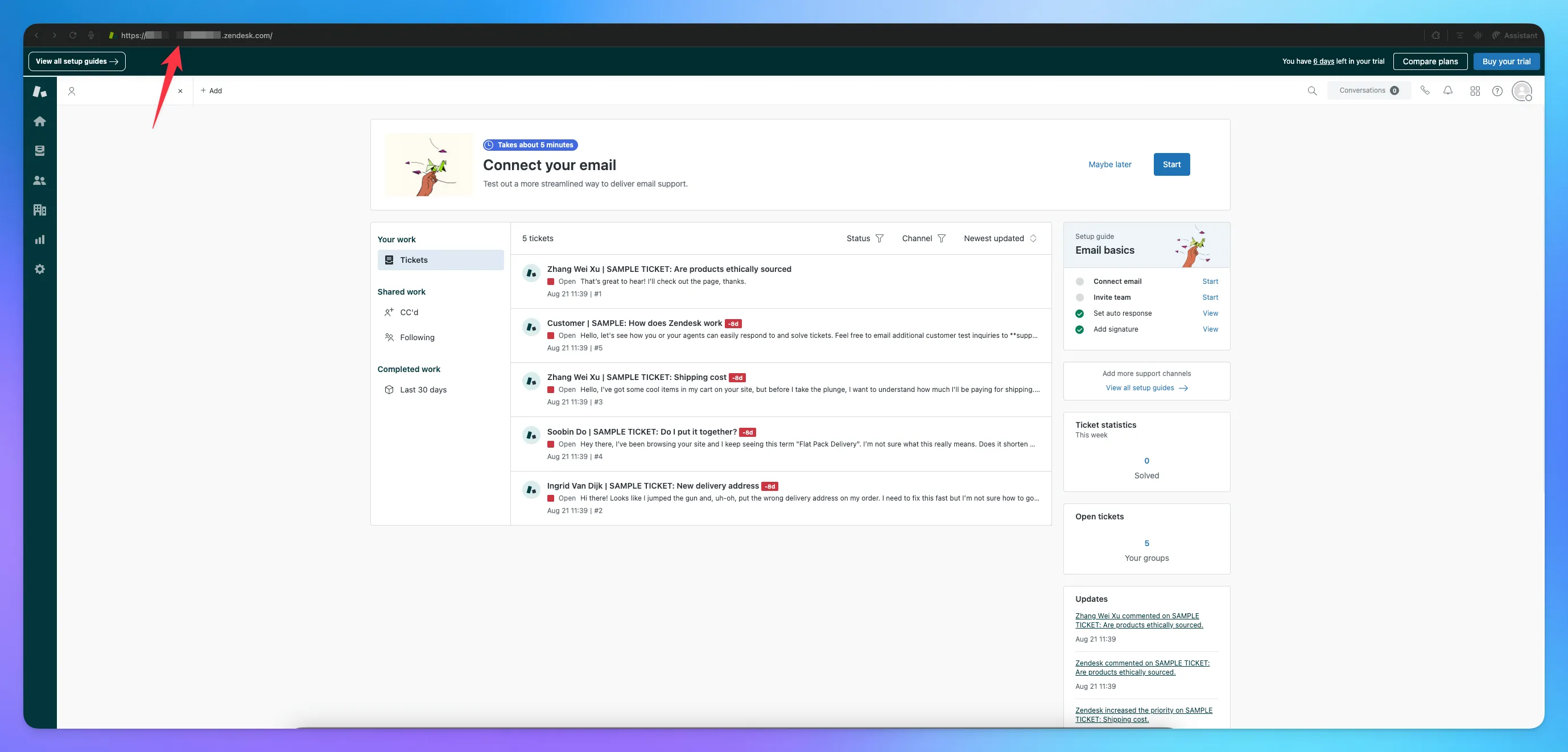
3. Create New Job
Fill all the Credentials & add the Job Name.
Select the AI Model for Training.
Add instruction for AI if you need.
Click on Create Job button.
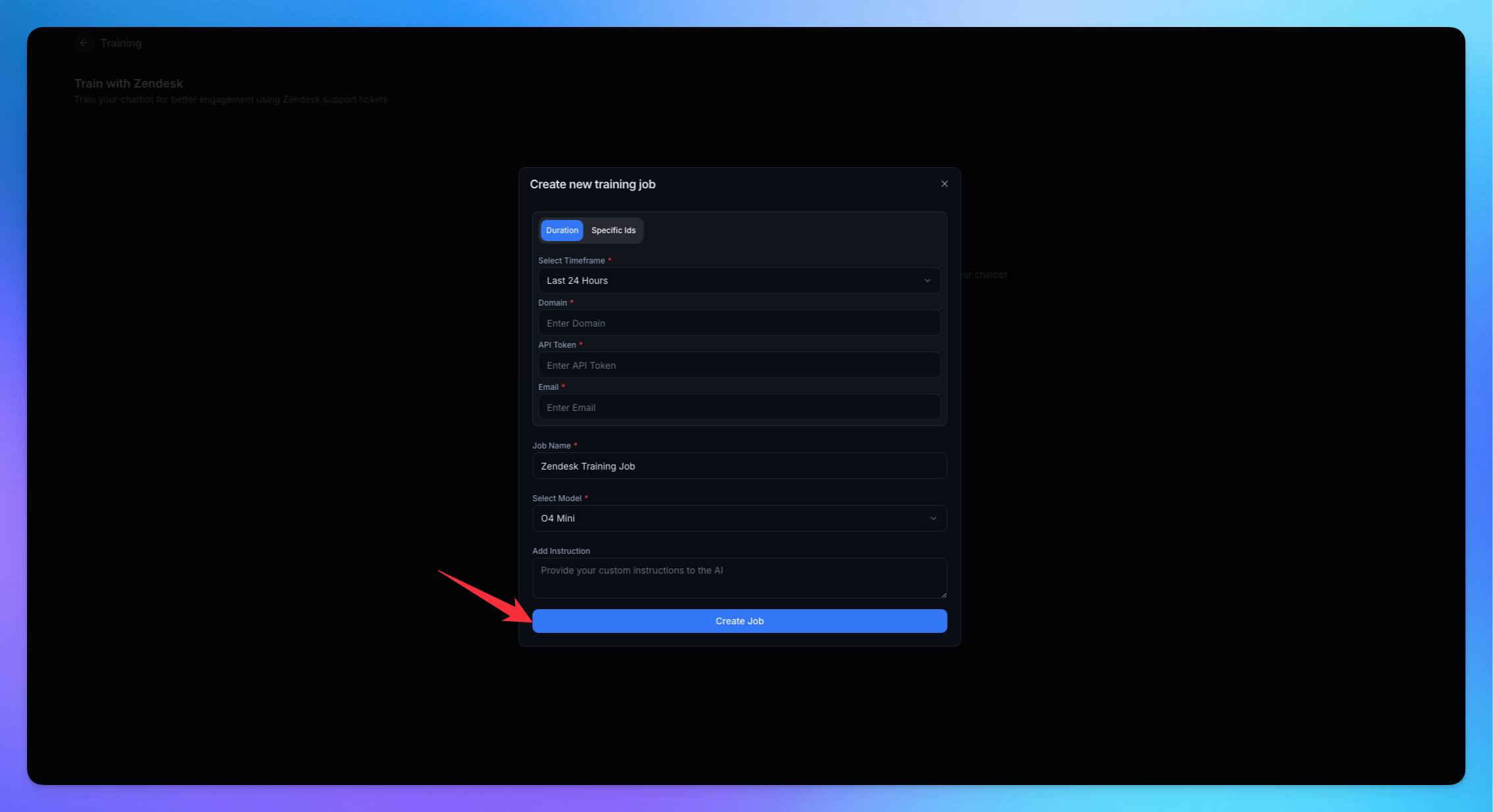
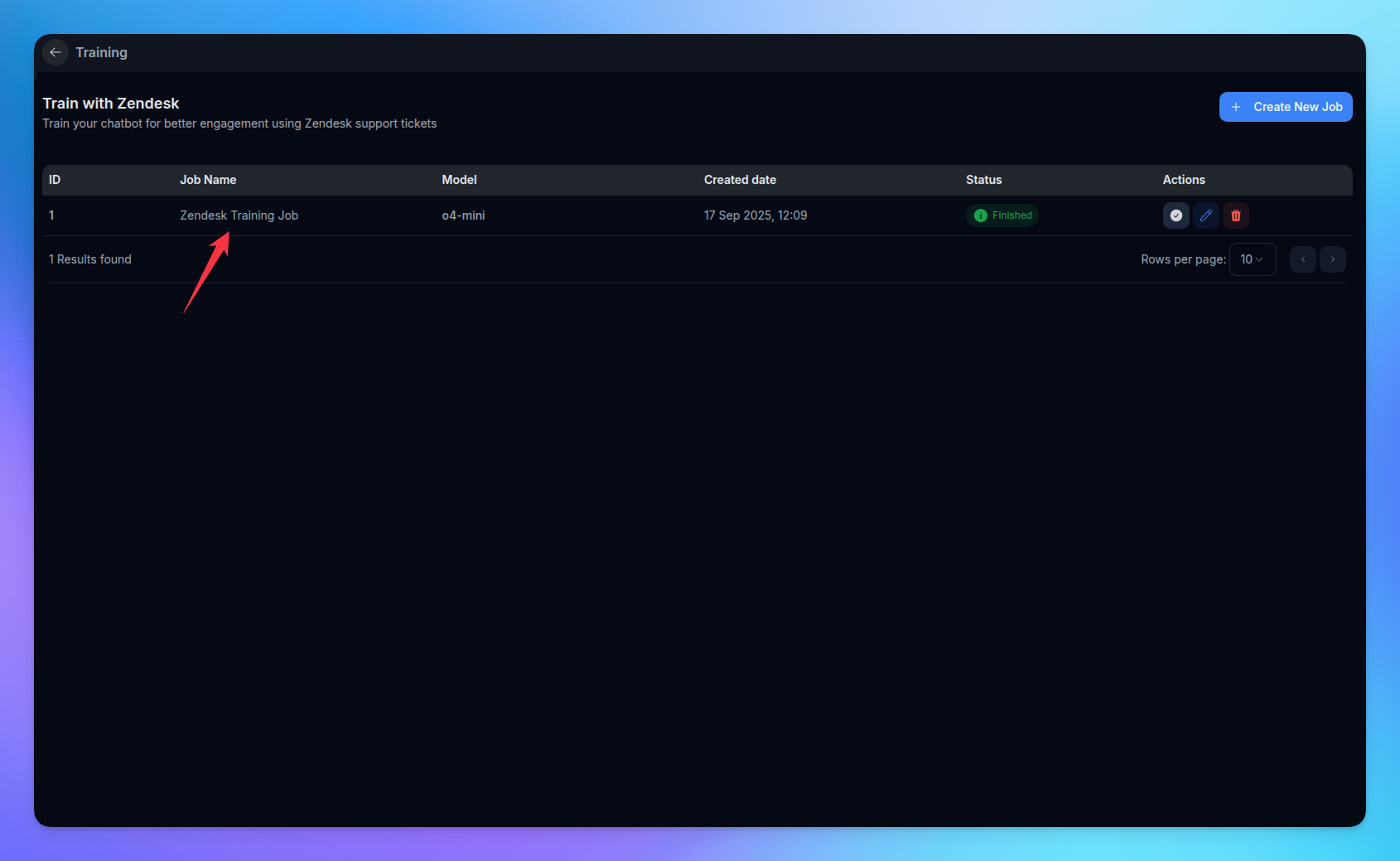
Zendesk Job is created.
Navigate to Learning Data by clicking on the Job name.
4. View your learning from Zendesk
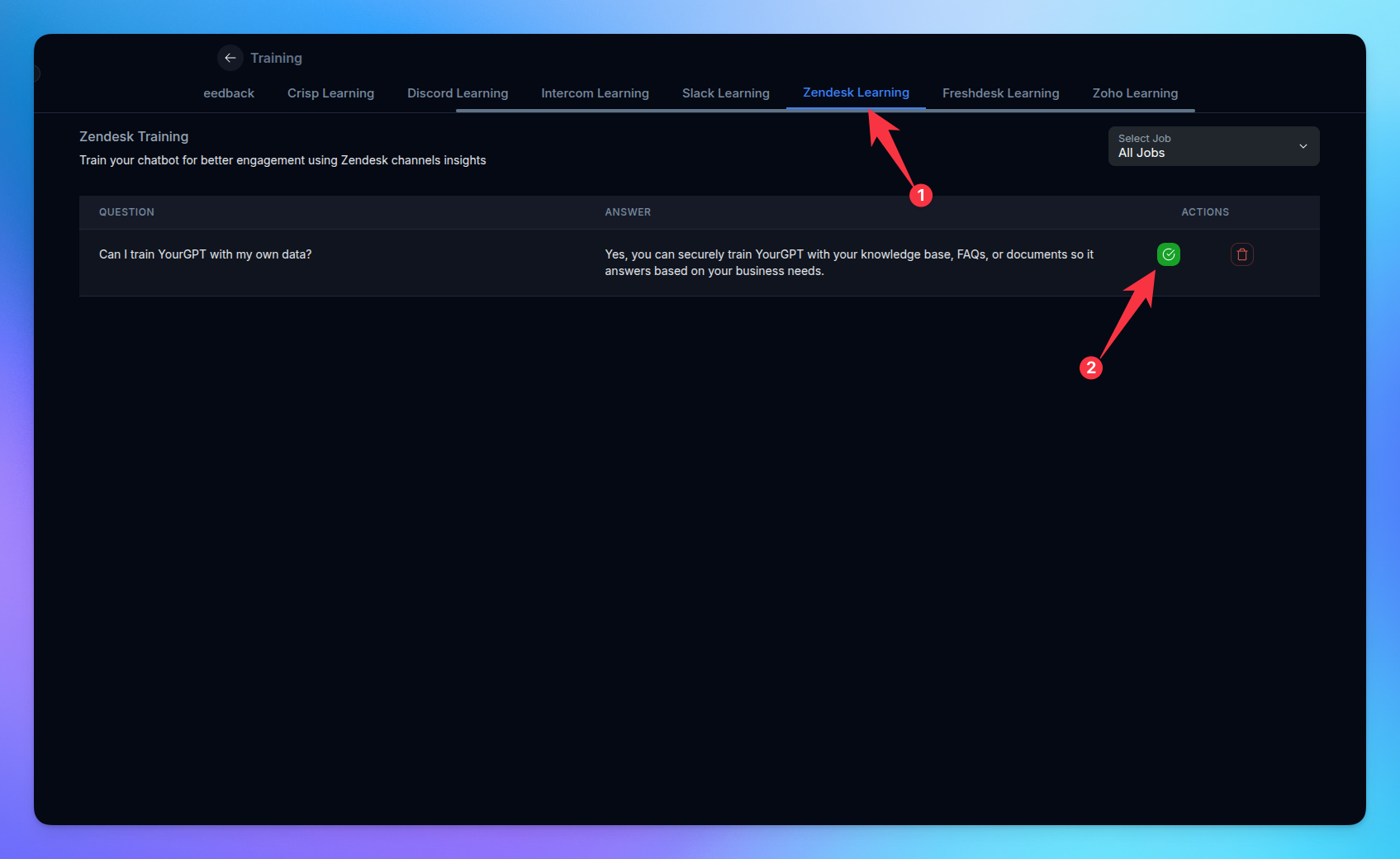
Go to the Zendesk Learning option.
Click the Train button to train the data.
Related Articles
How to Train AI From OneDrive Files
Step-by-step guide to training AI with OneDrive
How to Import Confluence Docs into YourGPT
Step by Step guide to training AI with Confluence
How to Setup and Use Training Tags?
This guide help you to segment your training data using training tags/
How to Training AI chatbot with Slack
Train your AI chatbot from previous Slack Conversations
How to Train Chatbot with Dropbox documents?
Training AI chatbot using Dropbox documents
How to Training chatbot with Google docs?
Train AI chatbot from google files
How to Train Chatbots Using Unresolved Queries?
Train the chatbot to handle previously unable to answer queries using self-learning