
How to Temporarily Disable AI Responses
Sometimes you may want to prevent your AI chatbot from automatically responding to user queries—perhaps during maintenance, testing, or when you want all conversations handled by human agents only.
Here's how to temporarily disable AI responses without deleting your automated response rules.
Steps to Disable AI Responses
Navigate to Automated Responses: Go to your chatbot dashboard and click on the "Automated Responses" section from the left sidebar.
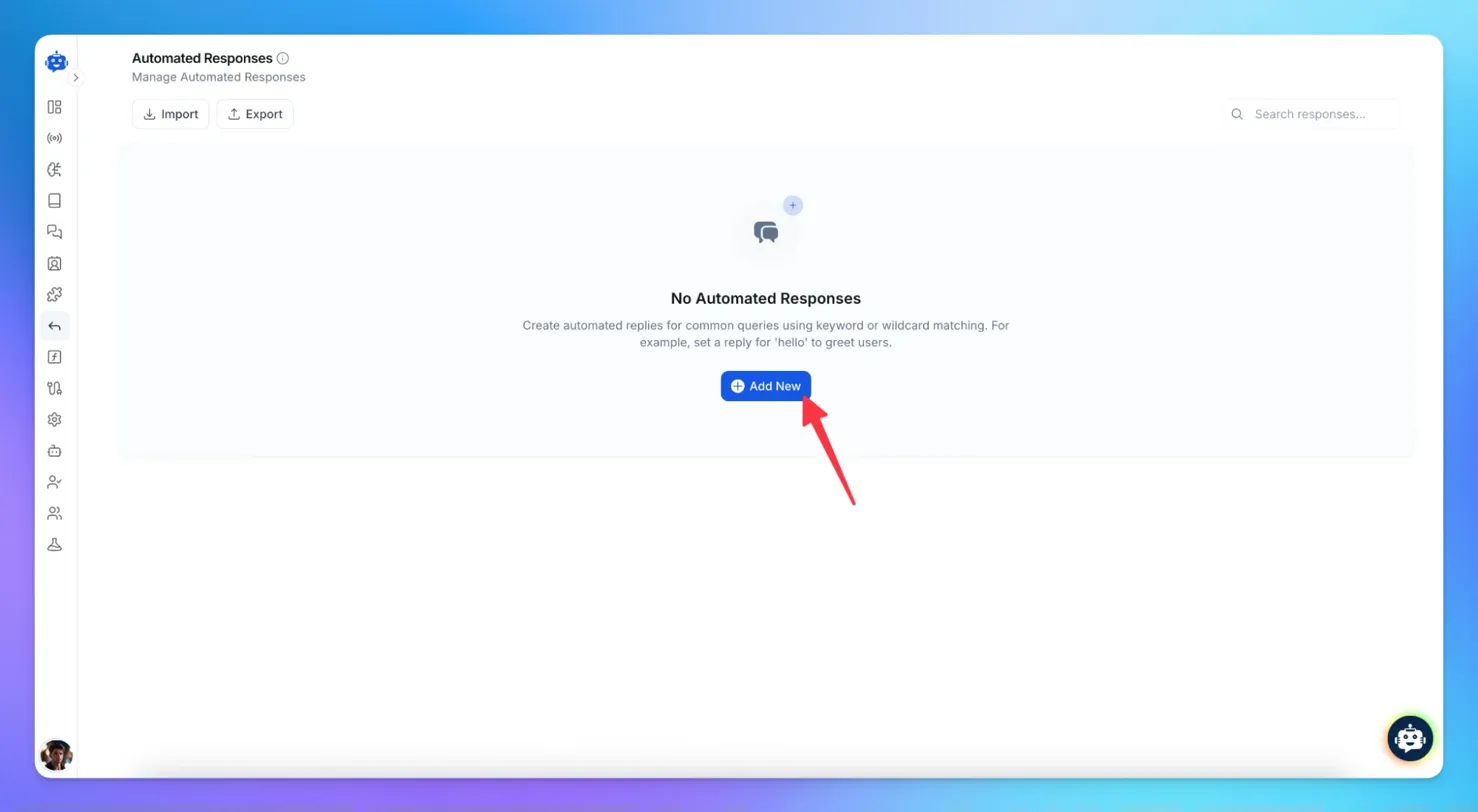
Create a Catch-All Rule: Click the "Add New" button. In the "User Message" field, enter an asterisk:
*. The asterisk acts as a wildcard that matches any user input.Leave the Response Blank: In the "Bot Response" field, leave it completely empty. Do not type any message or text.
Save the Rule: Click "Save" to activate the configuration.
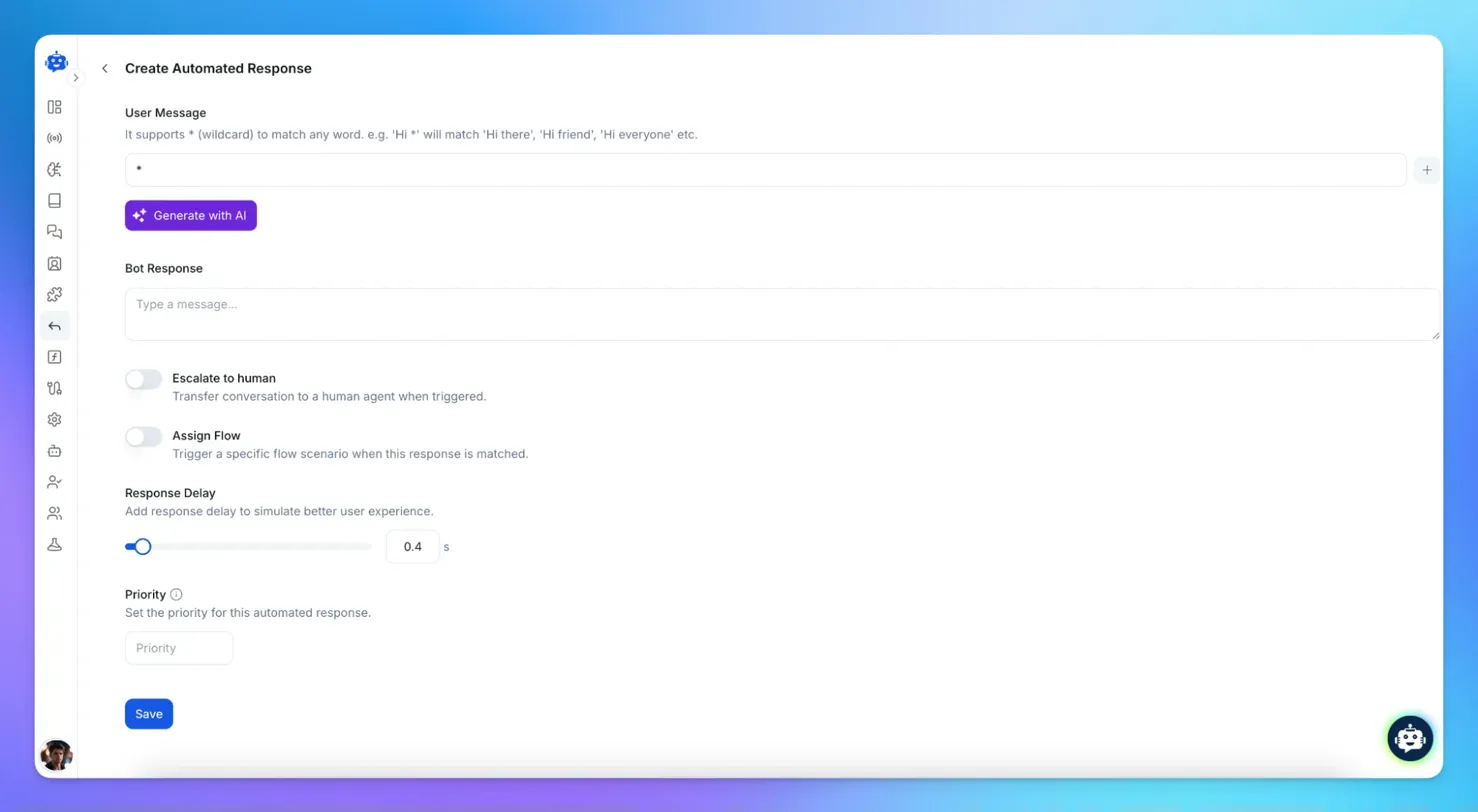
Note: While this rule is active, make sure your human agents are available to handle incoming queries, as users won't receive any automated assistance.
Re-enabling AI Responses
To turn AI responses back on, simply:
Go back to Automated Responses
Delete or disable the catch-all rule with the asterisk (
*)Your previous automated responses will resume working immediately
Frequently asked questions
Does this change my training data
No. Your knowledge sources and training stay the same. Only responses are paused.
Does this affect all channels
Yes. Any channel connected to that project that uses Automated Responses will follow this wildcard rule.
Can I still escalate to a human manually
Yes. Your team can reply from the inbox as usual. The pause only affects automatic AI replies.
Can I limit the pause to only some messages
This wildcard method pauses all messages.
If you want to silence only specific questions, use keywords instead of * and leave the Bot Response empty for those patterns only.
Related Articles
How to invite Team Members to Your AI Agent?
Add teammates, assign roles, and collaborate from chatbot settings.
How to Install YourGPT with Google Tag Manager
Learn how to easily add the YourGPT widget to your website using Google Tag Manager.
How to Enable Image Understanding for Your AI Agent
Give your AI agent the ability to understand images shared during conversations.
What is the Difference Between Chat Mode & Agent Mode?
A Practical Guide to choose between Chat Mode and Agent Mode in YourGPT
How to Add an AI Helpdesk to Your Website Widget With Optional Password Access
Embed an AI Helpdesk in Your Widget and Secure It in Minutes
Anywhere, Anytime Access to YourGPT Support Inbox
Instant Live Support from Your Phone with the YourGPT Mobile App