
How to Use Automated Responses in YourGPT
Automated Responses in YourGPT help businesses to efficiently handle repetitive inquiries with predefined replies, reducing costs and enhancing operational efficiency.
What Are Automated Responses?
Automated Responses are predefined replies triggered by specific keywords, phrases, or patterns in user messages. They are ideal for:
Addressing frequently asked questions.
Delivering instant answers to common queries.
Reducing the cost of AI while providing accurate responses.
Escalating conversations to human agents when needed.
Setting Up Automated Responses
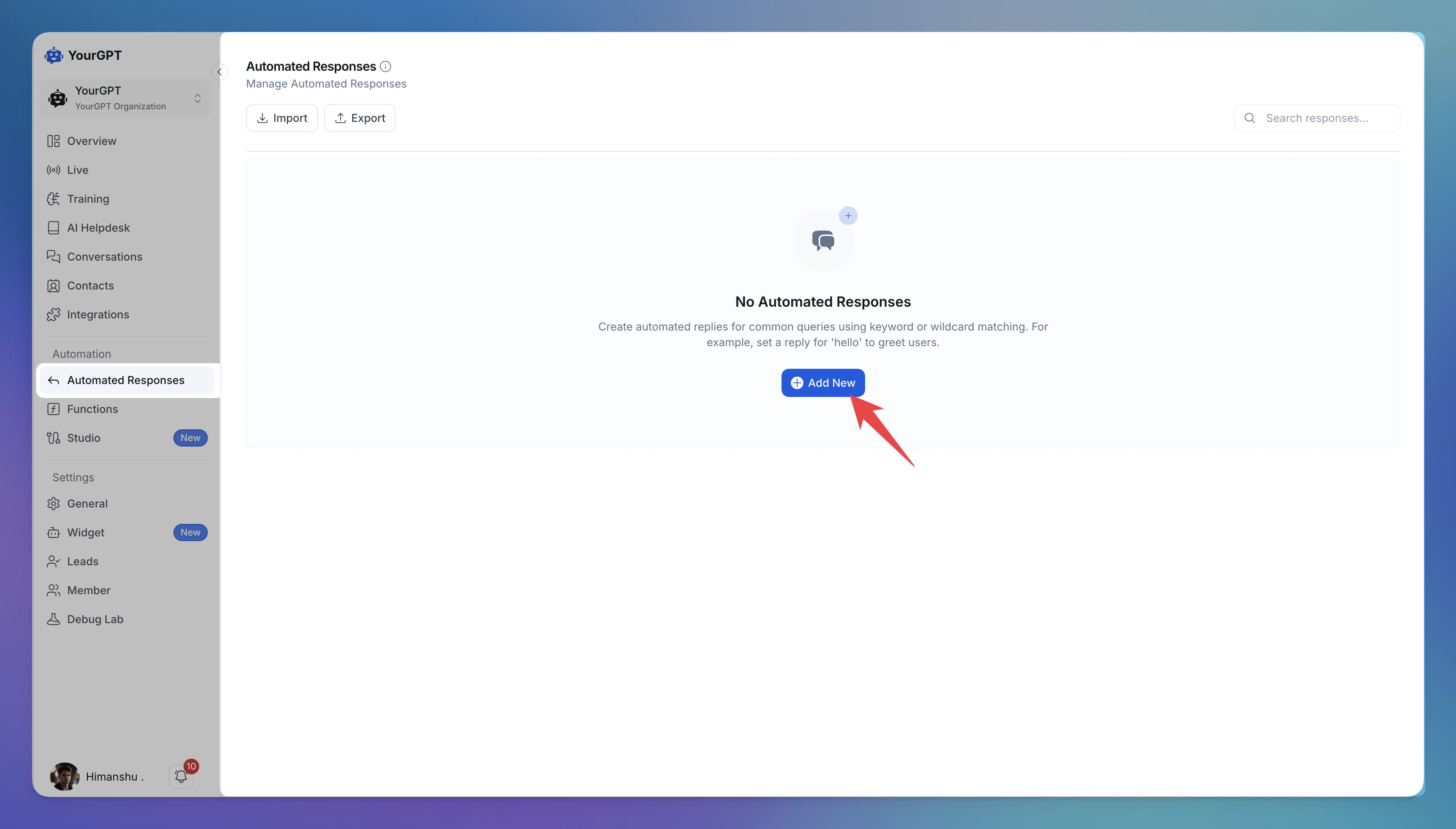
Step 1: Go to Automated Responses
In the left sidebar under Automation, click Automated Responses.
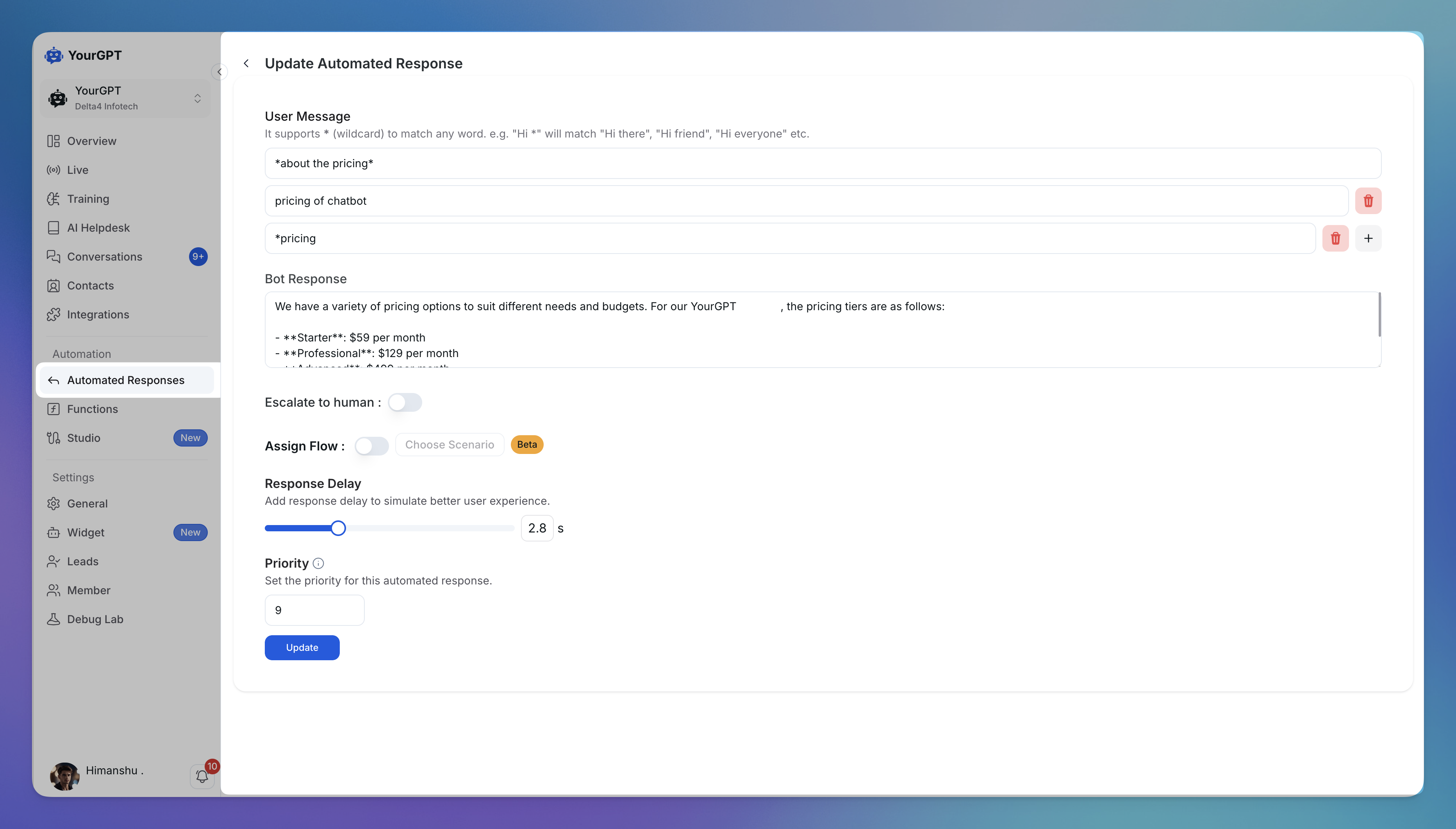
Step 2: Define Message
Exact Matching: Respond to precise user inputs with predefined messages, e.g.,
"Business hours"triggers the response: "We operate from 9 AM to 6 PM, Monday to Friday."
Contains Matching: Use
*in both side to match query variations, e.g.,"*pricing*"matches "Tell me about pricing" and "What are your pricing details?".Starts With Matching: When user inputs matches with our specific query message, e.g.,
"How do I reset*"matches "How do I reset my password?".Ends With Matching: Trigger responses for user input phrases that end with our specific query message, e.g.,
"*contact details"matches "Can you share your contact details?"
Step 3: Write Your Bot Response
Create clear and concise replies for each trigger.
Example: Trigger:
"Pricing details", Response: "Our pricing starts at $99/month. View all plans here: Pricing Page."
Step 4: Configure Options
Enable: Route specific keywords like 'talk to*' 'talk to live agents'.
Escalate to human:
Toggle this ON to route the conversation to a live agent instead of sending the automated reply.
Assign Flow:
Connect this to a specific chatbot flow in Studio. Click "Choose Scenario" to select a flow.
Response Delay:
Add a delay (0-5 seconds) to simulate typing for a more natural feel. Adjust the slider to your preference.
Priority:
Determines where this automated response appears in your list of automated responses.
Lower numbers (e.g., 1, 2, 3) have higher priority and appear at the top
Higher numbers have lower priority and appear further down
You can also drag and drop responses in the table to reorder them
Step 5: Test and Optimize
Ensure automated responses are correctly set up and tested in multiple scenarios.
How Wildcards Work
The * wildcard matches any text in that position:
Pattern | Matches | Doesn’t Match |
|---|---|---|
| "What's your pricing?", "Tell me about pricing" | "How much does it cost?" |
| "Hi there", "Hi John" | "Hello there" |
| "I need help", "Can you help me?" | "I need support" |
Features of Automated Responses
1. User Message:
Define user inputs using types like exact match, pattern match, starts with, ends with, or contains for triggering responses effectively.
2. Generated with AI:
Automatically generate additional user messages similar to existing ones for broader query coverage.
3. Bot Response:
Define the message the bot will display when a user sends the corresponding input.
4. Human Escalation Control:
Toggle human escalation to route conversations to live agents for complex issues.
5. Assign Flow:
Connect user messages to specific chatbot flows for guided interactions.
6. Response Delay Simulation:
Add slight delays (e.g., 0.4 seconds) to simulate typing for a more conversational feel.
Benefits of Automated Responses
Efficiency: Delivers instant answers for routine queries.
Cost-Effectiveness: Uses predefined replies without consuming AI credits.
Scalability: Handles high query volumes without additional resources.
Customizability: Adjust responses to meet user expectations through exact or pattern matching.
Use Cases
1. Quick FAQs
Respond to queries such as:
"What are your business hours?"
"How do I change my password?"
2. Customer Escalations
Redirect urgent issues to human agents with triggers like "need help" or "connect to support."
3. Trigger-Based Actions
Combine Automated Responses with triggers to create interactive experiences. For instance:
Discount Offer Example with text: Display a message like, “🎉 You’ve unlocked a 10% discount! Tap below to claim your code.” Once the user clicks, the chatbot can respond with the code and guide them to the checkout process.
Event Registration Example with studio: Trigger a response such as, “📅 Want to join our exclusive webinar? Click ‘Register Now’ to save your spot!” Clicking takes users into a registration flow.
4. Process Guidance
Integrate with Chatbot Studio for tasks like bookings, payments, or troubleshooting.
Best Practices
Be Specific: Ensure responses address the query directly.
Test: Verify that functionality setup correctly.
Refine Often: Update responses based on user feedback.
Use Wildcards Wisely: Avoid overly broad patterns that might misfire.
Adding the asterisk '*' alone applies to all messages—it will affect all responses (and may result no response if you haven't added any response), so use it wisely.
Adjust settings for exact matches, patterns, and human escalation to suit your business needs.
Related Articles
How to invite Team Members to Your AI Agent?
Add teammates, assign roles, and collaborate from chatbot settings.
How to Install YourGPT with Google Tag Manager
Learn how to easily add the YourGPT widget to your website using Google Tag Manager.
How to Temporarily Disable AI Responses
Disable bot responses for maintenance, testing, or manual handling
How to Enable Image Understanding for Your AI Agent
Give your AI agent the ability to understand images shared during conversations.
What is the Difference Between Chat Mode & Agent Mode?
A Practical Guide to choose between Chat Mode and Agent Mode in YourGPT
How to Add an AI Helpdesk to Your Website Widget With Optional Password Access
Embed an AI Helpdesk in Your Widget and Secure It in Minutes
Anywhere, Anytime Access to YourGPT Support Inbox
Instant Live Support from Your Phone with the YourGPT Mobile App